
How to Open the Debug Menu in Telegram
The debug menu is intended for developers and testers.
⚠️ Warning
Any actions taken in the debug menu can break the app or make it unstable. Only open the debug menu if you know how to reset the Telegram app in case of problems, don’t mind losing your secret chats, and understand what you’re doing.
The debug menu is intended for developers and testers. The options available inside are mainly used for diagnosing issues or testing features that haven’t yet made it into the stable version of the app. These features and options may work unstably and can change their behavior or disappear without warning.
Do not tap any options if you don’t understand what they do. Some buttons have inconspicuous labels yet can lead to major consequences — for example, permanently deleting all of your secret chats.
Choose your client:
Android
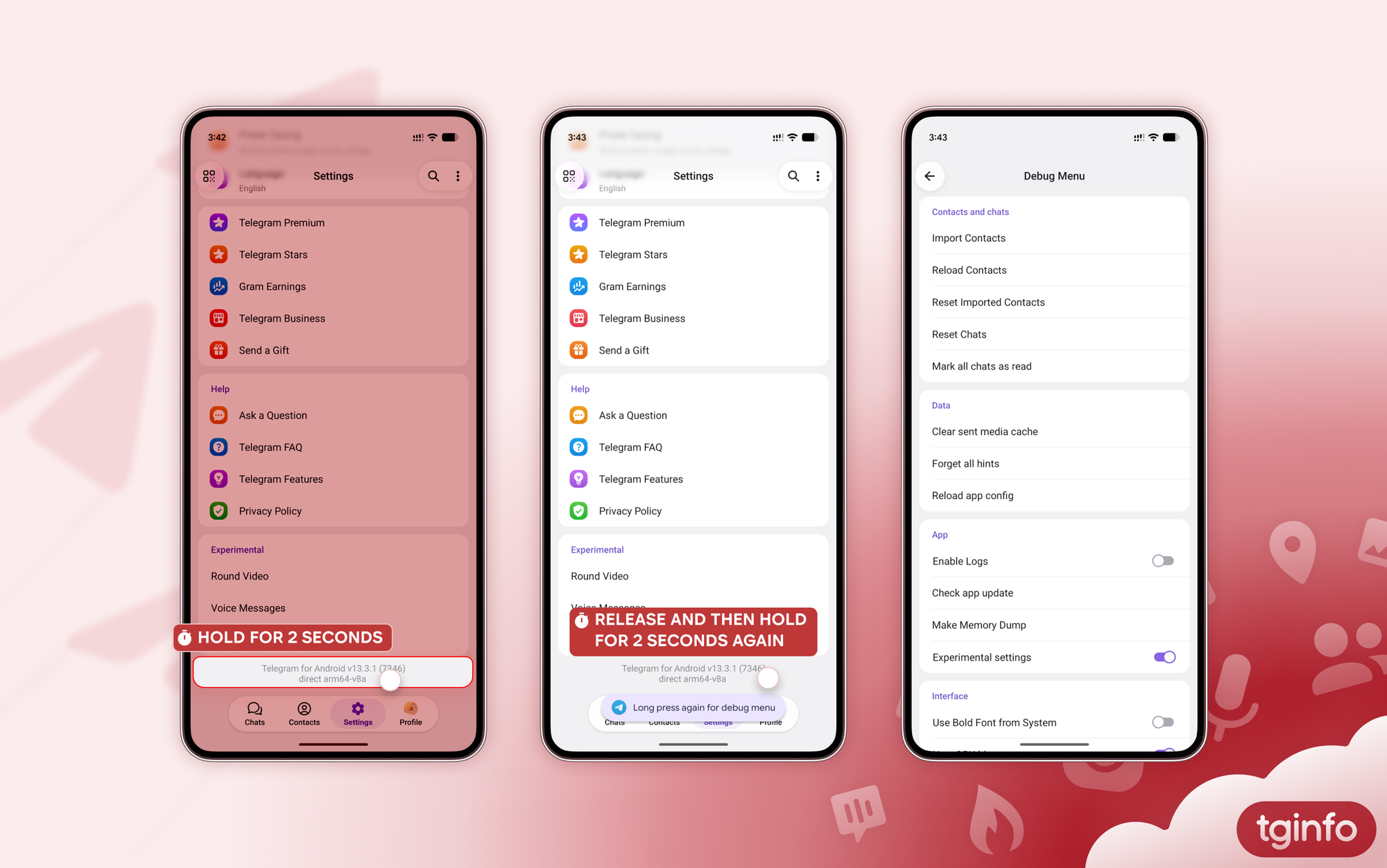
- In the Telegram app, select Settings in the bottom menu.
- Scroll all the way to the bottom of the page.
- At the very bottom, press and hold the “Telegram for Android” text on the gray background for two seconds.
- When the “Long press again for debug menu” message appears, lift your finger, then press and hold the same spot again for another two seconds.
- The debug menu screen will open.
iOS
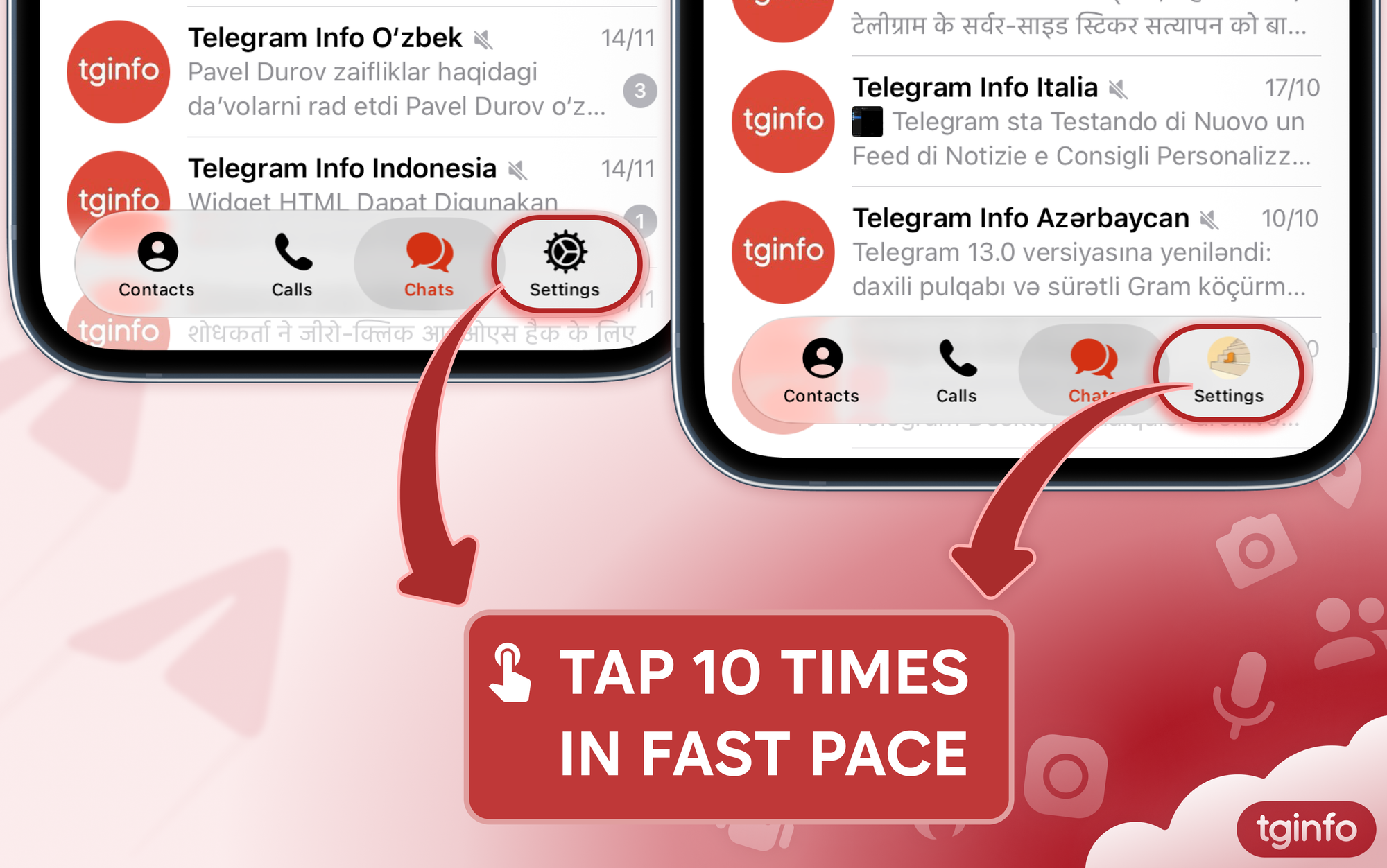
Depending on your settings, the app’s bottom bar may look different.
- Open the chat list.
- At the bottom of the screen, find the “Settings” tab: it is on the right side of the bar and may appear as a gear icon, or show your profile picture if you have multiple accounts.
- Tap this button 10 times in a row as fast as you can — the debug menu will open.
- If the menu doesn’t open, keep tapping faster.
Telegram Desktop
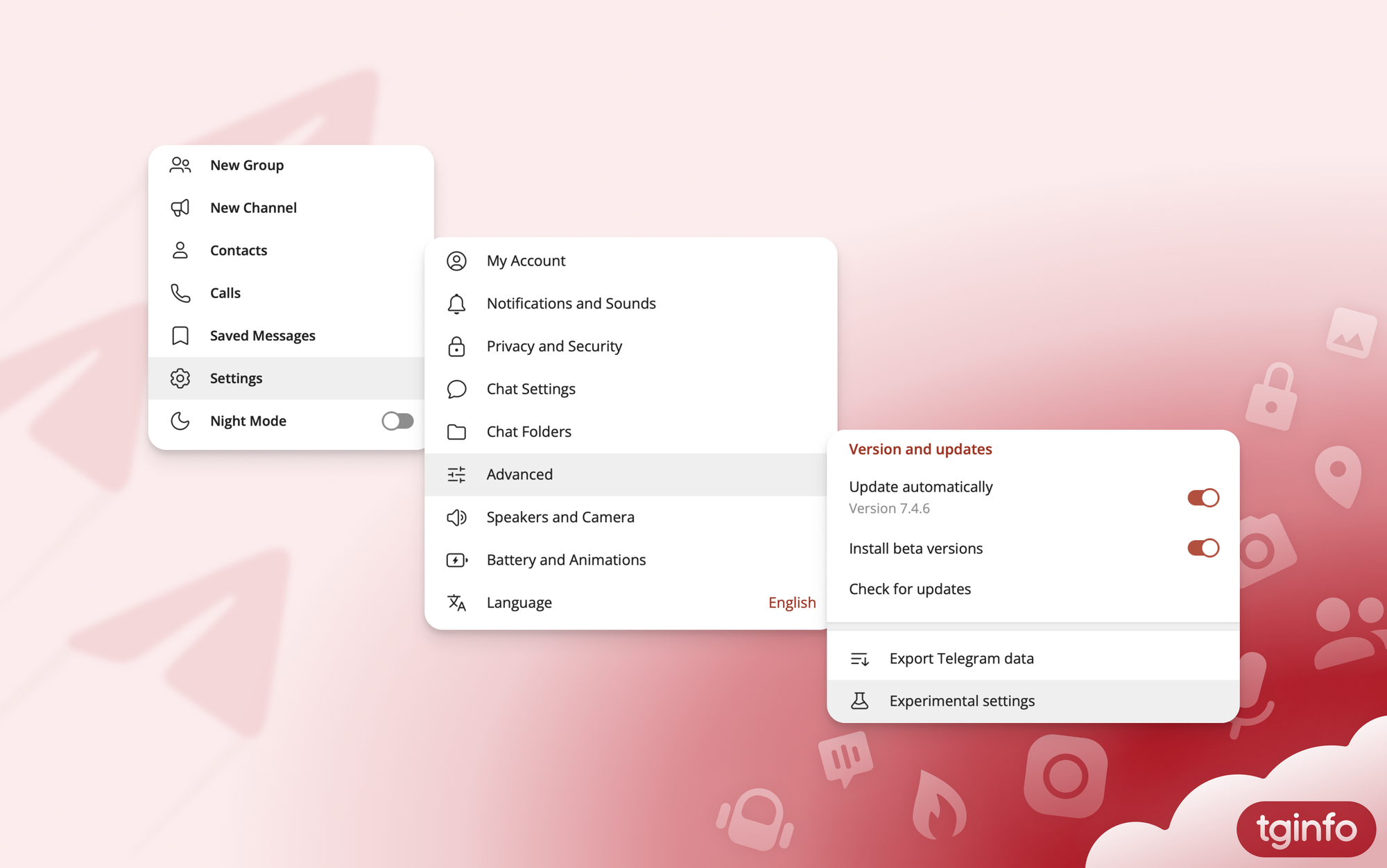
- In the Telegram app, click ☰ in the top-left corner and select Settings.
- Click “Advanced”.
- Scroll down and select “Experimental settings”.
Some options are only accessible via cheat codes.
In older versions of Telegram Desktop, you may need to enable automatic updates for the “Experimental settings” menu to appear.
macOS
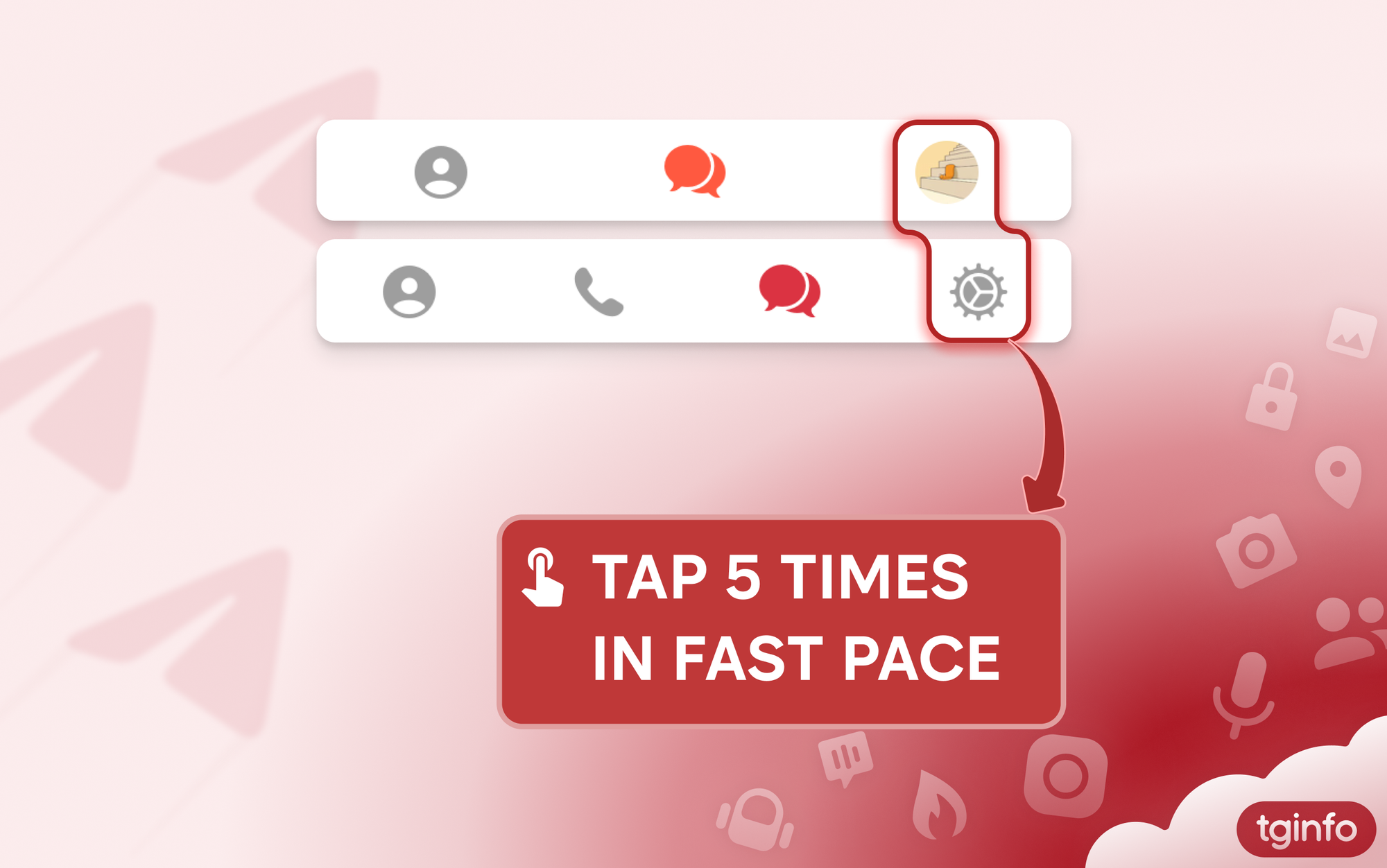
Depending on your settings, the app’s bottom bar may look different.
- Open the chat list.
- At the bottom of the screen, find the “Settings” tab — the gear icon. If multiple accounts are added to the app, your profile picture will appear in place of the gear.
- Click this button 5 times in a row as fast as you can — the debug menu will open.
- If the menu doesn’t open, keep clicking faster.
Telegram X (Android)
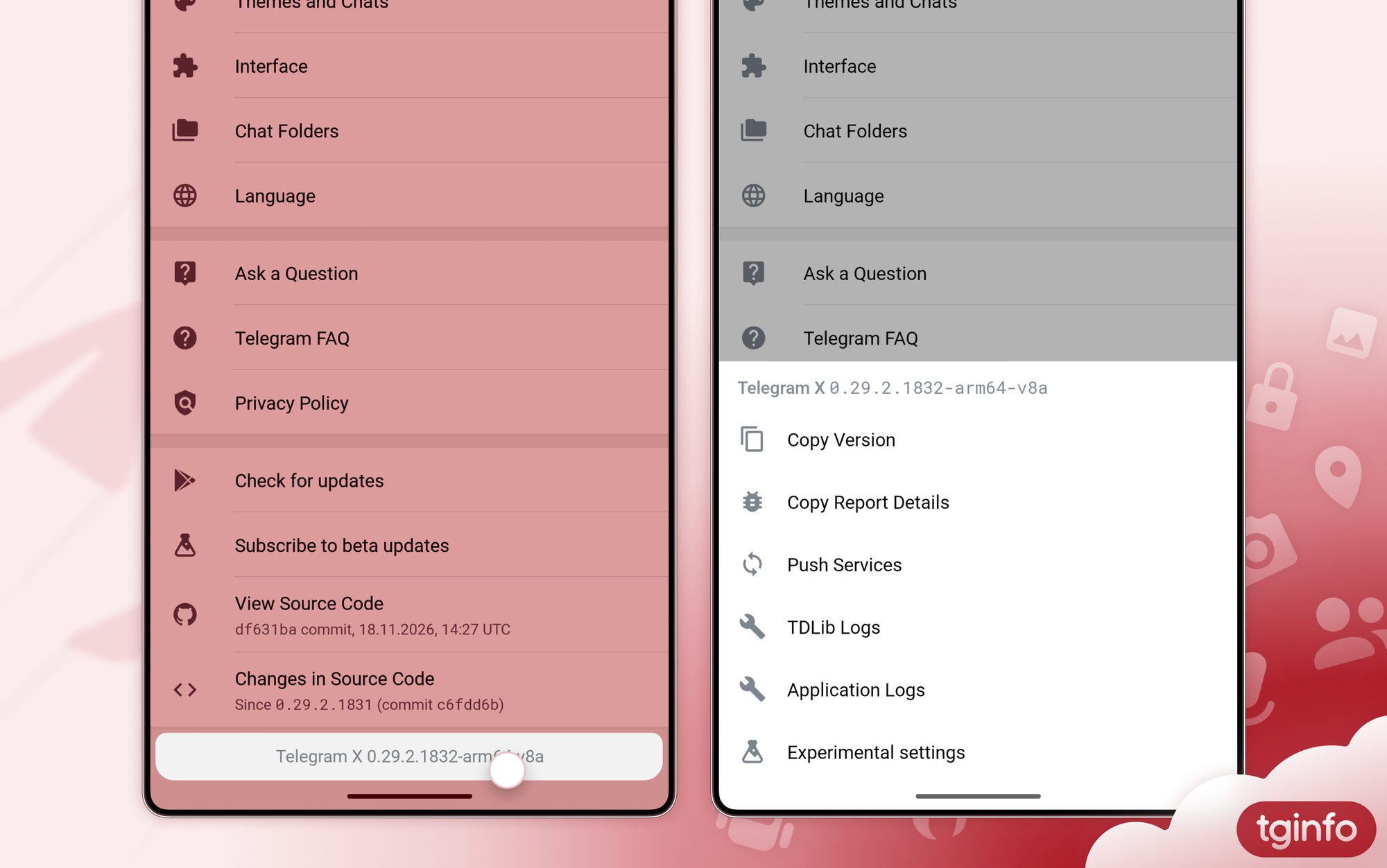
- In the Telegram X app, tap ☰ in the top-left corner and select Settings.
- Scroll all the way to the bottom of the page.
- At the very bottom, tap the “Telegram X” text on the gray background.
- The debug menu pop-up will open.
Unigram
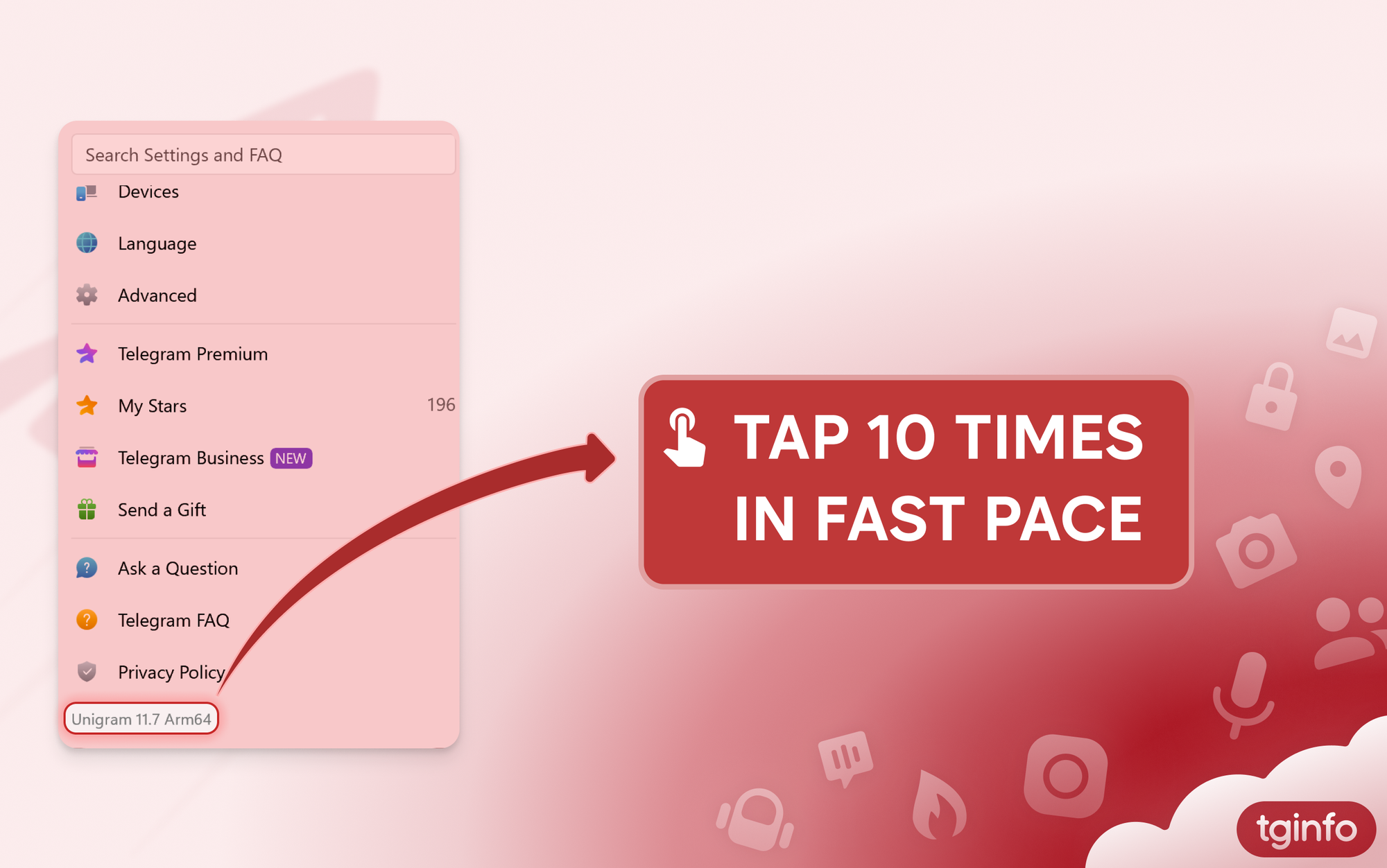
- In the Unigram app, click ⋯ in the top-left corner and select Settings.
- Scroll all the way to the bottom of the page.
- At the very bottom, find the gray “Unigram” text with the version number.
- Click this text 10 times in a row as fast as you can — the debug menu will open.
- If the menu doesn’t open, keep clicking faster. Make sure your clicks land directly on the text.